


FAQs
For iPhone
Get started with Planck Creator SSD on the iPhone 15 series and up!
Requirements
iPhone 15/16/17 Series can use Planck SSD directly to the USB-C port.
iPhone 15/16/17 Pro/Pro Max Series can record ProRes directly to Planck SSD
How to check if your Planck SSD is plugged in
- Open Files app
- Click on Browse on the navigation bar on the bottom
- "PlanckSSD" should appear under Locations
If PlanckSSD cannot be found, close all apps, and unplug Planck and plug it in again. If the problem persists, send us a video to cs@planckgear.com and our team will assist you.
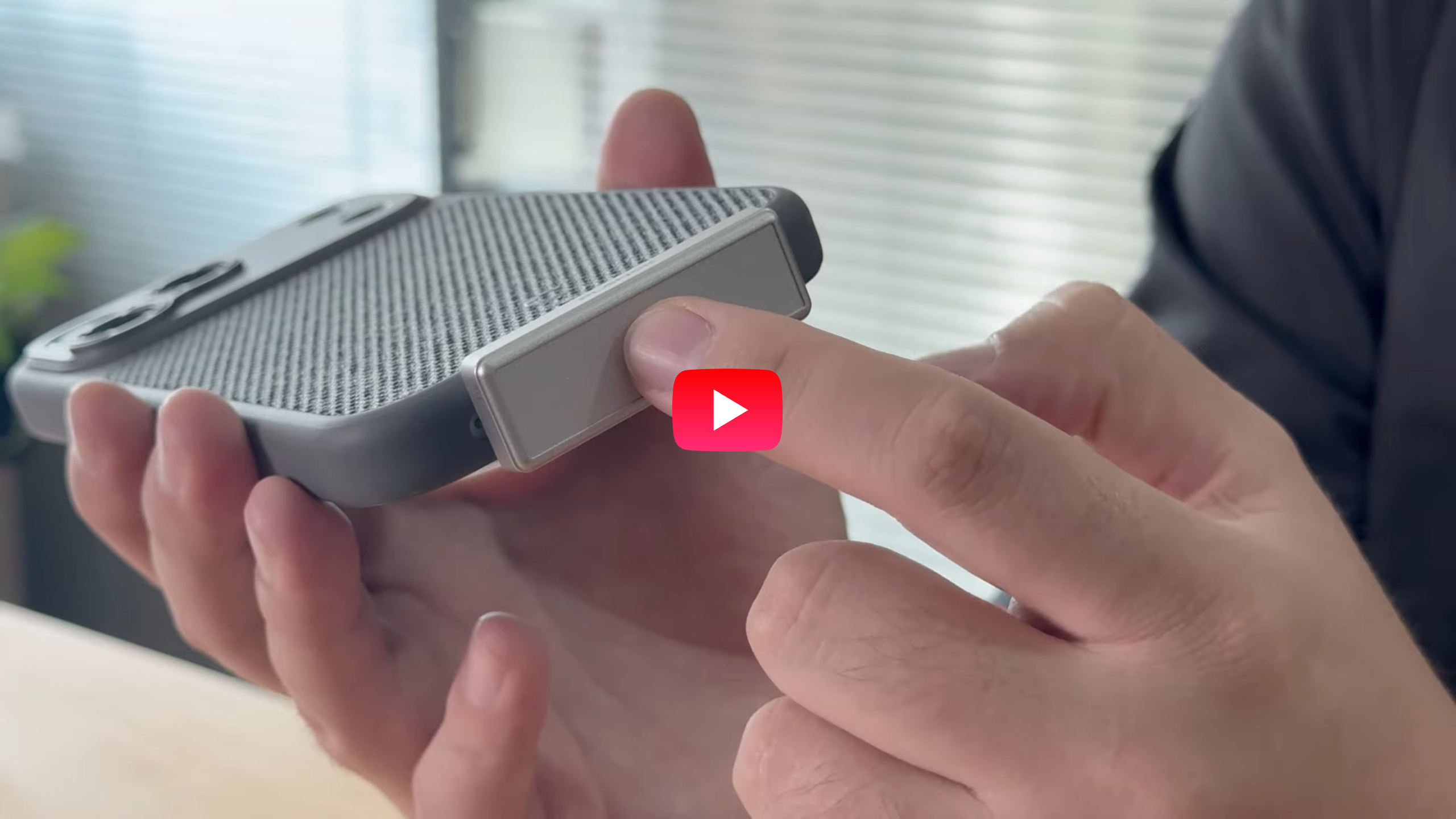
Watch Video →
Video Recording on Planck SSD with iPhone 15/16/17 Pro/ProMax
On iPhone Native Camera:
- On iPhone, go to Settings → Camera → Formats and toggle Apple ProRes on.
- Connect Planck SSD to iPhone’s USB-C.
- Open Camera → Video → ProRes.
- Check the storage indicator at the top: it should display Planck SSD (with remaining time). Tap the indicator to switch between iPhone and Planck if needed.
- Press Record. That’s it — ProRes files save directly to Planck.
On Third-Party Apps like BlackMagic Cam:
- Open the app → go to Settings.
- Find Save Clips To → Media Location.
- Select Files → Planck SSD.
- Start recording!
Watch Video →
Taking Photos on the Planck SSD
iPhone's system does not allow an option to select where photos will be saved. So we would recommend to take the photo first then transfer them to the Planck SSD after.
- Take photos with your native camera app
- Open Photos app
- Select the photos you'd like to transfer over to Planck SSD
- Tap the Share icon → Save to Files
- Find "PlanckSSD" under Locations → Save
Watch Video →
Transferring Files to Planck SSD
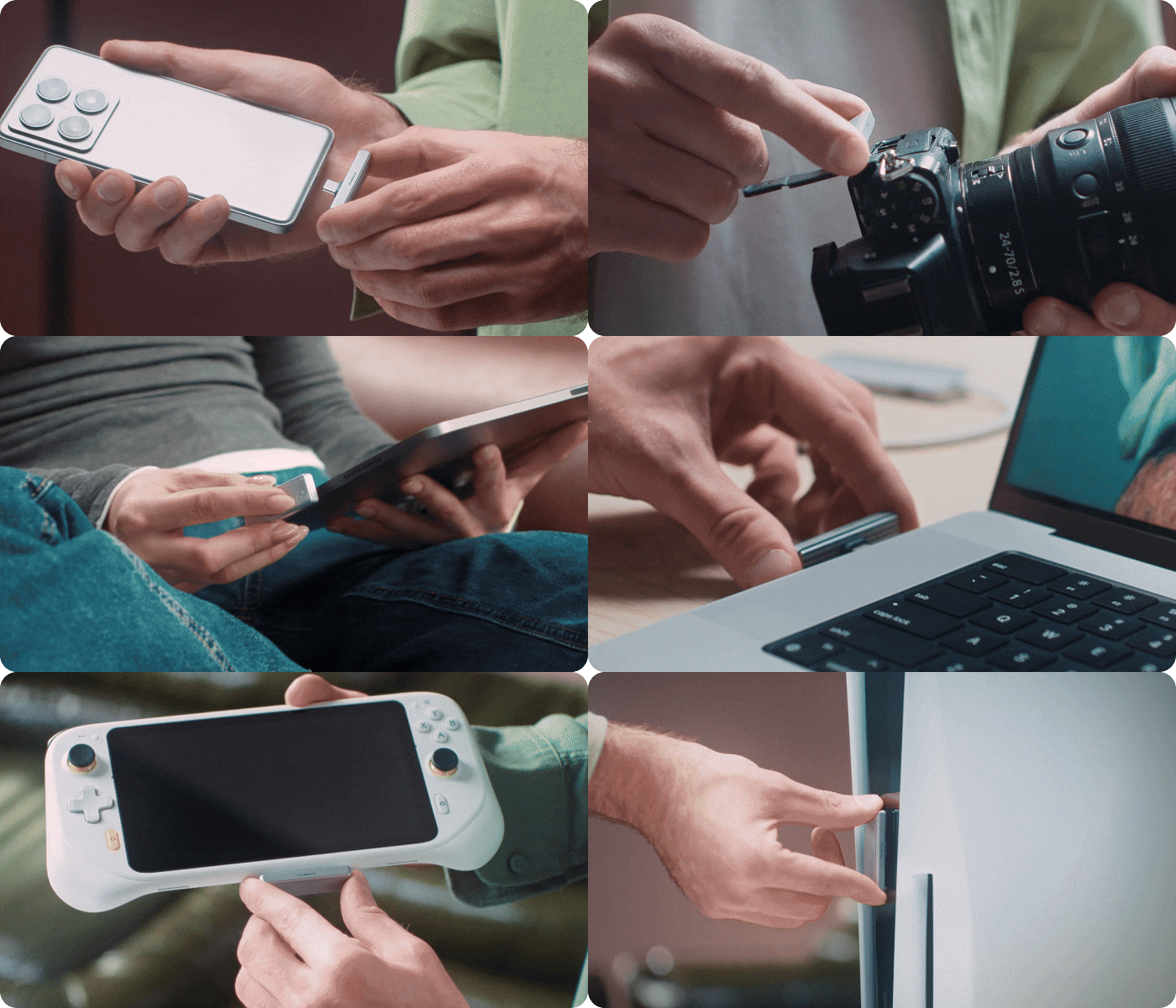
- Plug Planck fully into your phone’s USB-C port.
(If your case is extra thick, use the included adapter for a secure fit.) - Select your files → tap Share → choose Save to Files → select Planck → Save.
For Android
Get started with Planck Creator SSD on Android with USB-C!
Requirements
Works as external storage with all USB-C phones.
Taking Photo on the Planck SSD
Most phones' systems don't allow an option to select where photos will be saved. So we would recommend to take the photo first then transfer them to the Planck SSD after.
- Take photos with your native camera app
- Open Photos app
- Select the photos you'd like to transfer over to Planck SSD
- Tap the Share icon → Save to Files
- Find "PlanckSSD" under Locations → Save
Watch Video →
Taking Videos on the Planck SSD
- Download 3rd party apps like BlackMagic Cam
- Open the app → go to Settings.
- Find Save Clips To → Media Location.
- Select Files → Planck SSD.
- Start recording!
Transferring Files to Planck SSD
- Plug Planck fully into your phone’s USB-C port.
(If your case is extra thick, use the included adapter for a secure fit.) - Select your photos → tap Copy/Move → choose the Planck folder → confirm.
Planck Creator SSD
product registration
If you make an eligible claim in relation to your defective Planck product under the product warranty, we will send you a replacement for your product.
Planck Warranty does not cover:
- Products that are not registered on our site within one month after purchase
- Products purchased from a source other than Planck or a Planck Authorized Reseller
- Cosmetic blemishes, scratches, stains, or wear & tear
- Failures or breakages due to misuse, neglect, or intentional damage
Planck Creator SSD
warranty claim
Got something that needs repair or replacement? Please fill in the Warranty Claim Form with the information below:
Filing for Warranty Claim
- Your Name and Contact Information
- Order Information and Receipt
- Product Details and Issues Encountered (photos/videos recommended)
- Your Shipping Address
Once you have submitted your warranty claim form, our team will process your request and reach out to you within 3-5 business days to assist you.
LIABILITY RELEASE
We have designed and built our gear to work well with as many devices and accessories as possible, with various testing conducted to ensure they are safe to use. Planck is not liable for damage to devices, smartphones, cameras, equipment, clothing, or anything in your surrounding environment as a result of usage. Planck is also not liable for bodily injury to yourself or others as a result of gear usage.